In this guide I will show you how you can improve your laptop’s battery life on Linux without any compromise .
Linux And Laptops
If you are coming from Windows you may find that battery life on Linux is significantly worse than on Windows the reason being that most Laptops are made to run Windows so the vendors optimize their hardware and software for Windows and not Linux (depending on the machine some may find it to be the complete opposite if that’s you well good for you but you can make it even better).
Default Power Tools
Your desktop environment comes with a default power management tool eg. power-profiles-devel for KDE Plasma,Gnome. This requires the least configuration from the user side and they work by having different static power profiles(power save, balanced, performance) which you can toggle. The problem? It’s not the best tool out there.
TLP
If you have done any research on improving battery life you may have come across TLP.It’s very popular and for good reasons, its highly configurable and can help extend battery life,however it also uses static power profiles and switches between them and does not scale cpu dynamically.
auto-cpufreq The Only Tool You Need
auto-cpufreq is a tool that scales yours cpu and power dynamically and can give you excellent battery life and performance ,this is my power management tool of choice it aims to replace TLP (not recommended to run it along side TLP) and doesn’t require much input from the user side just set it and forget it, it will do the rest ,give you performance when you need, save power when you don’t,unlike the others mentioned it dynamically changes the cpu frequency and toggles turbo boost automatically based on demand.
Installation
You can install it from snap(I don’t like snap personally)
sudo snap install auto-cpufreqIf you are on arch based systems you can install it from AUR using any helper
yay -S auto-cpufreqor manually
git clone https://aur.archlinux.org/auto-cpufreq.git
cd auto-cpufreq
makepkg -si
Or you can build from source
git clone https://github.com/AdnanHodzic/auto-cpufreq.git
cd auto-cpufreq && sudo ./auto-cpufreq-installer
Enabling
Enable it as daemon it using the following command.
systemctl enable --now auto-cpufreq Disable any existing power management daemon if any (eg power-profiles-daemon)
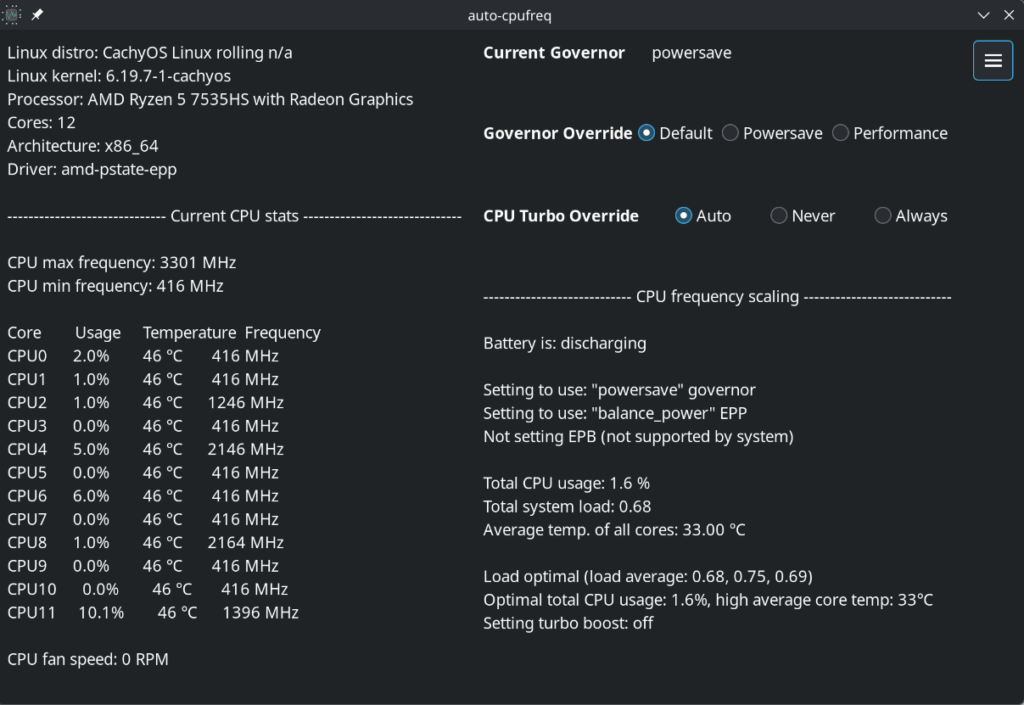
systemctl disable power-profiles-daemonNow you can open the GUI using your application launcher
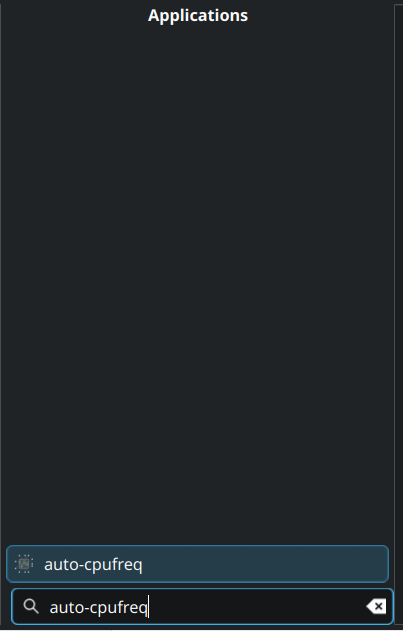
It should show up like this
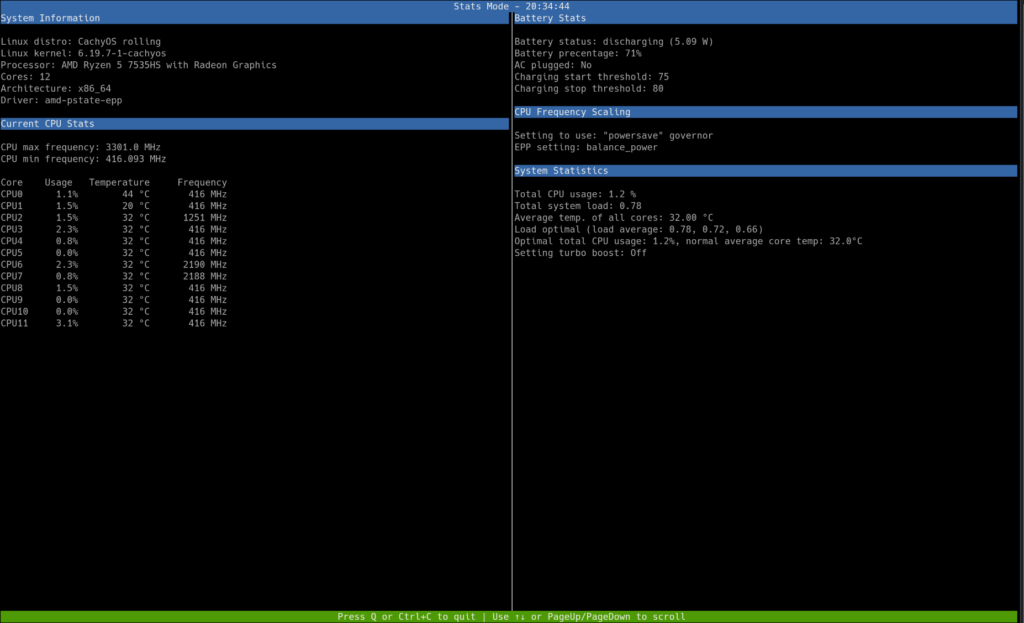
Alternatively you can run this command
auto-cpufreq --statsIt should show up like this
If you want to learn more about auto-cpufreq you can head to the github repository.
General Tips
- Lower brightness and refresh rate on battery.
- Enable automatic suspend when inactive.
- Using a light weight desktop setup, a minimal window manager setup can significantly improve battery life(eg Hyprland, Sway,i3 etc) compared to desktop environments like KDE Plasma or Gnome.
- Dedicated gpus might require additional configuration (especially Nvidia).
Okay that’s all I hope this guide was helpful.

Leave a Reply